troubleshooting the pc(2026)

A practical guide to diagnosing and fixing common PC issues quickly and safely.
The PC you rely on every day can run into problems that range from minor annoyances to major roadblocks. Troubleshooting is about a calm, methodical approach: identify the symptom, isolate the cause, test your hypothesis, and implement a fix. In this guide, you’ll find a practical, step-by-step process you can apply to most Windows or macOS PCs, plus some hardware-specific tips and safety reminders. Whether you’re a casual user or a power user, you’ll gain confidence in solving issues quickly and safely.
Quick comparison of initial simple checks
| Check | What it tests | Typical outcome | Recommended action |
|---|---|---|---|
| Check power • cables | Power supply, outlets | Varies | Re-seat, try another outlet |
| Inspect cables | Connections quality | Loose/damaged | Tighten or replace |
| Listen for beeps | POST errors | Beep pattern | Look up pattern in manual |
| Check hardware status | See BIOS/OS signals | Normal / abnormal | Diagnose as needed |
| Check for overheating | Temps during idle | Normal / high | Clean fans, rethermalize |
| Check BIOS/firmware | Version health | Up-to-date / old | Update if required |
Compiled November 2026; check the provider's site for current details.
Start with the simple checks
Many PC problems are caused by something as ordinary as a loose cable or a tired battery. Before you dive into diagnostics, perform these quick checks:
- Power and cables: Ensure the power cable is firmly plugged in, the outlet works, and the surge protector (if used) is on. Check the battery if you’re on a laptop.
- Peripherals: Disconnect nonessential devices (printers, external drives, USB hubs) to see if a peripheral is causing the issue.
- Display basics: If you can’t see anything on screen, confirm the monitor is on, the input source is correct, and the brightness isn’t set to zero.
- Keyboard and mouse: Test with a different keyboard or mouse to rule out input device problems.
- Reboot: A clean restart can clear temporary glitches. If the problem recurs, note when it happens (boot, login, idle, high CPU load, etc.).
Check system health and software state
Software problems can masquerade as hardware issues. Use these checks to map the fault to software or the OS:
- Updates: Ensure your operating system and drivers are up to date. Patches often fix bugs and improve stability.
- Startup programs: If your PC is slow or crashes on login, review startup items and disable unnecessary ones.
- Disk space and health: Low disk space can cause many issues. Run a disk cleanup and verify there’s enough free space. For HDDs, check SMART status. For SSDs, watch wear and wear-level indicators if available.
- Malware and security: Run a reputable antivirus or anti-malware scan. Unwanted software can cause performance degradations or unusual behavior.
- Logs and errors: On Windows, use Event Viewer to inspect critical or error logs. On macOS, Console can show crash reports and daemon messages. Look for repetitive errors around the time the problem occurs.
System health and software state overview
| Area | Indicators | Normal state | Action if abnormal |
|---|---|---|---|
| OS health | Update status, boot errors | Up-to-date, clean boot | Run updates, repair boot |
| Disk health | SMART, errors | Healthy | Run CHKDSK, monitor |
| Memory | RAM test results | Pass / minor errors | Reseat/replace RAM |
| Drivers | Version, conflicts | Current / stable | Update or roll back driver |
| Antivirus | Scan status | Clear | Schedule regular scans |
| System events | Critical warnings | None | Investigate warnings |
Compiled November 2026; check the provider's site for current details. searching shortcuts in netscape(2026)
Diagnose performance and stability issues
If your PC is slow, unresponsive, or prone to random crashes, use targeted diagnostics:
- Resource monitor: Check CPU, memory, disk, and network usage during the symptom. High CPU usage by a single process or runaway background tasks can explain slowdown.
- Memory health: Faulty RAM can cause random crashes and blue screens. Run a memory test tool (Windows Memory Diagnostic or MemTest86) if you suspect RAM problems.
- Storage health: Full or failing drives cause freezes and data loss risks. Run a drive health check and consider backing up critical data.
- Thermal and power: Overheating can throttle performance or shut down. Clean fans and heatsinks, verify adequate airflow, and monitor temperatures using a trusted tool.
- Driver health: Outdated or corrupted drivers can cause crashes, crashes, and display issues. Reinstall or rollback drivers for critical components (graphics, chipset, network).
Troubleshoot common PC symptoms with targeted fixes
Here are practical fixes for frequent problems. Choose the scenario that matches your symptom, then apply the steps in order.
Computer won’t boot:
Check power, cables, and outlet. can i combine two different operators(2026)
Disconnect all nonessential hardware (external drives, USB devices) to test the boot path.
Enter BIOS/UEFI and verify boot order. Reset to default settings if there’s doubt about misconfigurations.
Test with a Windows startup repair or macOS Recovery if available.
If nothing works, the issue might be a failing drive or other hardware. Proceed with data backup and professional help. what is a “meta” search engine(2026)
System is slow or laggy:
Restart and update the OS and drivers.
Free up disk space and disable unnecessary startup programs.
Check for malware and run a system cleanup. how do i broaden a search(2026)
Run a memory and disk health check. Upgrade RAM if you frequently hit high usage.
Consider replacing an aging HDD with an SSD for noticeable speed gains.
Random crashes or blue screens:
Update drivers, especially graphics and chipset. how do i narrow a search(2026)
Run memory test for RAM issues.
Check for overheating and clean the cooling system.
Scan for malware and check for software conflicts or problematic updates.
No audio, video, or peripheral issues: how does a search engine work(2026)
Verify device is enabled, not muted, and set as default playback/recording device.
Reinstall or roll back drivers for the affected device.
Test with a different cable or port to rule out hardware failure.
Check for BIOS/firmware updates on devices that frequently fail. ulster cancer foundation(2026)
Network problems:
Confirm Wi-Fi is enabled, airplane mode is off, and you’re connected to the correct network.
Restart router and modem. Try a direct Ethernet connection to isolate Wi-Fi issues.
Update network drivers and reset network settings if needed. fundraising(2026)
For persistent issues, check the router’s firmware and security settings.
Troubleshooting workflow options by goal
| Goal | Step 1 | Step 2 | Step 3 | Decision point |
|---|---|---|---|---|
| Stabilize performance | Check processes | Test with clean boot | Monitor temps | If issues persist → hardware test |
| Fix boot issues | Check BIOS/UEFI | Repair MBR/boot | Safe mode | If still failing → reinstall OS |
| Reduce crashes | Update drivers | Run memtest | Check storage | If persists → hardware check |
Compiled November 2026; check the provider's site for current details.
Hardware-focused troubleshooting
If software checks don’t reveal the cause, you may be facing hardware faults. Tread carefully and prioritize data safety: education and training(2026)
- Visual inspection: Look for bent pins, swollen capacitors, or obvious signs of damage on the motherboard, power supply, and cables.
- Power supply: An unstable or insufficient power supply can cause random reboots. If you have access to a tester or another known-good PSU, swap it to verify.
- RAM seating: Reseat memory modules to ensure reliable contact. Try one module at a time to identify a faulty stick.
- Storage: If a drive is failing, back up data immediately and consider replacing the drive. Use drive health tools to quantify risk.
- GPU and other PCIe devices: Faulty GPUs can cause black screens or crashes. Test with integrated graphics (if available) or another GPU to isolate the issue.
- Thermal paste and cooling: Replacing degraded thermal paste and ensuring good airflow can resolve overheating problems.
Create a methodical troubleshooting workflow
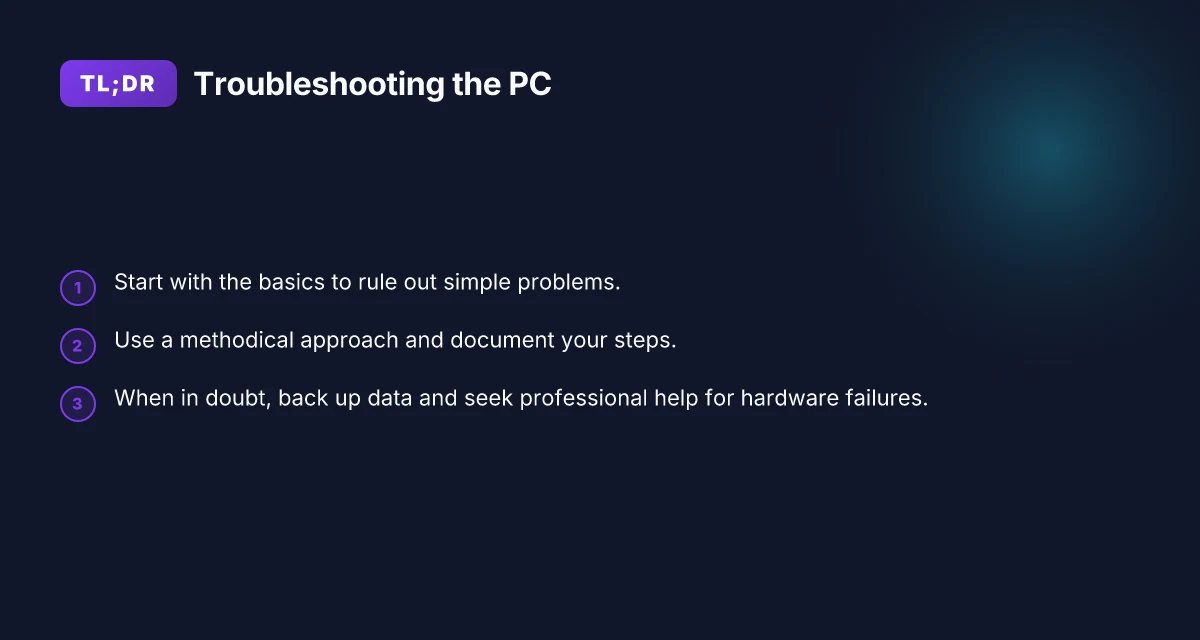
A repeatable process helps you solve issues faster and more safely:
- Document symptoms: Note when the problem occurs, what software is involved, and any recent changes.
- Reproduce reliably: If you can trigger the issue consistently, it becomes easier to validate a fix.
- Make a plan: List potential causes and the fixes you’ll try, in order of likelihood and risk.
- Apply changes one at a time: Change one setting or component at a time to clearly see the effect.
- Test thoroughly: After each fix, test under normal load to confirm stability.
- Back up critical data: Regular backups prevent data loss if a hardware failure occurs.
- Know when to escalate: If you’re uncomfortable with hardware work, or if the problem involves the motherboard, power supply, or leaked fluids, seek professional help.
A quick-reference troubleshooting checklist
- Is everything plugged in and powered on?
- Have you disconnected nonessential peripherals?
- Are updates current for OS and drivers?
- Do you have free disk space above 10-15%?
- Have you run a malware scan?
- Are temperatures within normal range?
- Have you checked event logs or crash reports?
- Have you run hardware diagnostics (RAM, drive, GPU if applicable)?
- Is data backed up before making changes?
TABULAR COMPARISON: software-focused vs hardware-focused troubleshooting
- Purpose
- Software-focused: Identify OS, driver, or application issues.
- Hardware-focused: Confirm physical components are functioning or failing.
- Primary tools
- Software-focused: System updates, drivers, event logs, antivirus, disk tools.
- Hardware-focused: POST/BIOS checks, power supply tester, RAM sticks, drive health tools.
- Typical symptoms
- Software-focused: Slow performance after updates, crashes in apps, driver errors.
- Hardware-focused: Random reboots, no POST, overheating, boot failures.
- Risk level
- Software-focused: Generally safe. Reversible with backups and clean reinstalls.
- Hardware-focused: Higher risk. May cause data loss or electrical hazards. Seek professional help if unsure.
Final section: best practices and final recommendation
Troubleshooting a PC is a mix of science and patience. Start with the simplest explanations and gradually move toward deeper diagnostics. Always backup important data before performing operations that alter the system or hardware. Maintain a minimal, clean setup: keep drivers updated, monitor temperatures, and store essential tools (battery backup, a USB drive with recovery utilities, and license keys) in a safe place.
If you reach a point where the issue is clearly hardware-related and involves power supplies, motherboard components, or considerable disassembly, consider consulting a professional technician. A well-documented troubleshooting log and a small, safe backup before any major repair can save you time, money, and data in the long run. request(2026)
When you adopt a methodical approach and maintain copies of your critical data, most PC issues can be diagnosed and resolved with confidence. With practice, you’ll become adept at pinpointing whether the problem is software, configuration, or hardware, and you’ll know exactly which steps to take to get back to productive computing.